How to Host a Minecraft Server on Windows for Free (Step by Step)
You do not need a paid host to play with friends. A normal Windows 10 or 11 PC can run a Minecraft Java server for a handful of players. This guide shows the quickest reliable way, and what to check so it stays smooth.
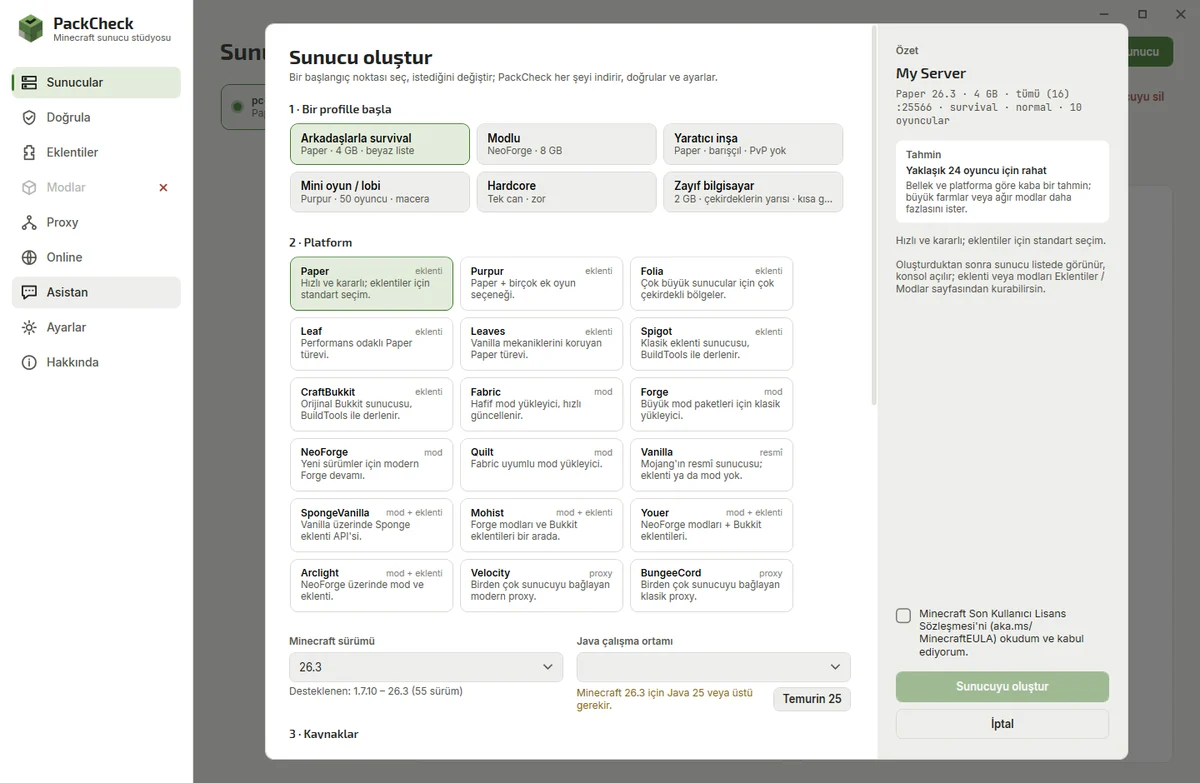
Step by step
- Check your PC. A small survival server needs about 2–4 GB of free memory and a reasonably modern CPU. Modpacks need 6–8 GB or more. Use a wired connection if friends join over the internet.
- Install PackCheck. Download the installer from GitHub and run it. It installs for your Windows user only, so you do not need administrator rights.
- Create the server. Click New server and pick a profile such as Survival with friends. PackCheck chooses Paper, a free port and sensible game rules; change RAM, CPU cores, game mode, difficulty or the player limit if you like.
- Accept the EULA and create. Tick the Minecraft EULA box and press Create server. PackCheck downloads the official server, checks its hash and installs the right Java (Temurin) automatically.
- Start and test locally. Press Start. When the dashboard shows TPS 20, join from your own game with localhost or the local address shown on the Online page.
- Invite friends. On the same Wi-Fi friends use your local address. Over the internet open the port on the Online page and confirm with Test from outside (see the port forwarding guide).
Which server software should I choose?
Paper is the usual choice: it runs plugins and is faster than the official server. Choose Fabric or NeoForge for mods, and Velocity if you want to connect several servers. See Paper vs Fabric vs Forge for details.
How much RAM does a Minecraft server need?
| Server | Players | RAM |
|---|---|---|
| Vanilla or Paper survival | 2–10 | 2–4 GB |
| Paper with many plugins | 10–30 | 6–8 GB |
| Modpack (Fabric/NeoForge) | 2–10 | 6–10 GB |
Do not give the server more than about three quarters of your PC's memory; Windows and your game need the rest.
Questions
Is hosting a Minecraft server on my own PC free?
Yes. The server software and PackCheck are free; you only pay for electricity and your internet connection.
Can I play on the same PC that runs the server?
Yes, as long as the PC has enough memory for both. Limit the server's CPU cores in PackCheck to keep your game smooth.
Do I need Java?
PackCheck installs the right Java version for the server automatically.