Minecraft Port Forwarding: Let Friends Join
If friends on the same Wi-Fi can join but people outside cannot, the router is dropping their connection. You fix it once by opening the server port in the Windows firewall and forwarding it on the router.
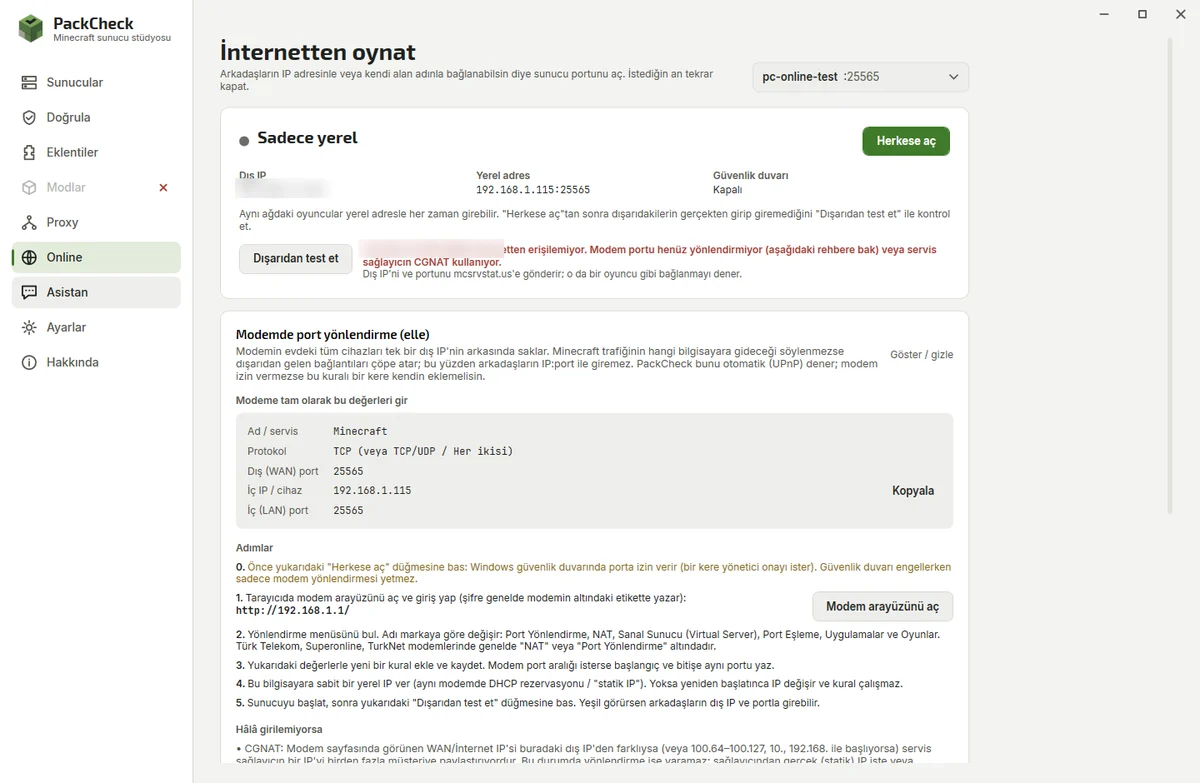
Step by step
- Open the port in Windows. On PackCheck's Online page press Open to the internet. It adds a firewall rule for the server port after one administrator prompt.
- Let PackCheck try UPnP. Many routers accept automatic forwarding (UPnP). If yours does, you are done.
- Forward the port by hand if needed. Open your router's page (usually http://192.168.1.1/), find Port Forwarding, NAT or Virtual Server, and add a rule: TCP, external port 25565, internal IP of your PC, internal port 25565.
- Give your PC a fixed local IP. Reserve the PC's address in the router's DHCP settings so the rule keeps working after a restart.
- Test from outside. Press Test from outside in PackCheck. Green means friends can join with your public IP and port.
Not sure which server software to run? See Paper vs Fabric vs Forge. New to hosting? Start with hosting a Minecraft server on Windows.
Still not reachable?
- CGNAT: if the WAN IP on your router page differs from your public IP (or starts with 100.64–100.127), your provider shares one IP between customers. See CGNAT below.
- Two routers: forward on both, or put the provider's modem in bridge mode.
- Testing from home: many routers cannot connect to their own public IP (no NAT loopback). Use the local address at home.
- Changing IP: share a free DuckDNS name instead of the raw IP; PackCheck can keep it updated.
CGNAT: when port forwarding cannot work
Many providers no longer give each home its own IPv4 address. With CGNAT (carrier-grade NAT, also part of DS-Lite) many customers share one address and your router only receives an internal one. Friends who connect to the shared address reach the provider, not your home, so a port forward on your router changes nothing. Your PC and your router settings are fine.
How to tell
- Open your router's page and find the WAN or Internet IP address.
- Compare it with your public IP (PackCheck shows it on the Online page).
- If they differ, or the router's address starts with
100.64–100.127, you are behind CGNAT. If it starts with192.168.or10., there is a second router in front of yours (double NAT).
What you can do
- Ask for a public IPv4 address. Tell your provider: "I am behind CGNAT and need a public IPv4 address for port forwarding." Many switch you for free or for a small fee (often called a static IP). Restart the router afterwards.
- Use IPv6 if you and your friends have it: allow the port for IPv6 in the router's firewall and share your PC's IPv6 address in brackets, for example
[2a02:…]:25565. - Use a tunnel such as playit.gg (free, made for Minecraft): run the playit program on your PC, add a Minecraft Java tunnel to
127.0.0.1and your server's port, and share the address it gives you. No router changes needed. - Use a virtual LAN for a few friends: Tailscale, ZeroTier or Radmin VPN. Everyone installs the same program and joins your network.
- Rent a small server (VPS or Minecraft host) if none of this is possible.
Double NAT, not CGNAT? Forward the port on the provider's modem to your router and on your router to your PC, or put the provider's modem in bridge mode.
Questions
What is CGNAT and how do I get around it?
Your provider shares one public IPv4 address between many customers, so port forwarding cannot reach you. Ask for a public IPv4 address, use IPv6, or use a tunnel such as playit.gg.
What port does Minecraft Java use?
25565 over TCP by default. PackCheck picks a free port automatically and shows it on the Online page.
Is port forwarding safe?
It only opens the Minecraft port. Keep online mode and a whitelist on, and close the port again from the Online page when you do not need it.
Why can't my friends join with my IP?
Usually the router is not forwarding the port, the Windows firewall blocks it, or your provider uses CGNAT.